
Subscribe to the intended Paralives Workshop item, let Steam finish any related download, then close and reopen Paralives. Test the item in the game mode or catalog named by its creator. The official sources checked for this guide do not confirm one universal in-game Mods switch, so do not assume a menu path that the item or current game instructions do not name.
What 'enable' means for a Workshop item
Players often use enable to describe several different steps: subscribing to an item, receiving its files through Steam, and seeing its effect in Paralives. For readers asking how to enable Workshop mods in Paralives, verify each handoff instead of assuming a subscription is the in-game switch. The subscription belongs to the Steam account, the transfer to the Steam client, and the result to the creator-named game context.
Steam's official Paralives listing says the game is Early Access and supports community Workshop content. It does not verify a universal Mods menu or toggle. Use a setting only when current official game instructions or the creator's item page names it.
- Subscribed means Steam has recorded the Workshop choice; it does not prove that a download is complete or that the item is visible in the current game view.
- A completed Steam transfer does not prove that an item supports the game state or content category you are testing.
- A creator's item page is the place to check dependencies, intended game mode, and any special activation instructions.
Step 1: Confirm the correct Workshop subscription
Open the item's page from the official Paralives Workshop or from your Steam subscription list. Check that the page belongs to Paralives and that it is the exact item you meant to add in Paralives. Similar titles, collections, and items for another game can make a successful subscription look like a game problem later.
Read the creator's description before changing anything else. Note the content type, required items, stated compatibility, and the game context used in any preview. If the creator lists a dependency, confirm that it is also subscribed to and available. A collection page can contain multiple items with different requirements, so check the individual entries rather than treating the collection as one package.
- Verify the app is Paralives and the individual item is the intended one.
- Read the creator's current notes for dependencies and the expected in-game location.
- Keep a note of the item page URL so you can compare instructions if it is updated.
Step 2: Let Steam finish delivering the item
After subscribing, check Steam's Downloads view for active or paused work related to Paralives. Resume a paused queue and allow any visible transfer to complete before you test the game. If no transfer is shown, do not repeatedly unsubscribe and subscribe just to force a status message; first confirm the subscription on the item page and then continue with a clean game launch.
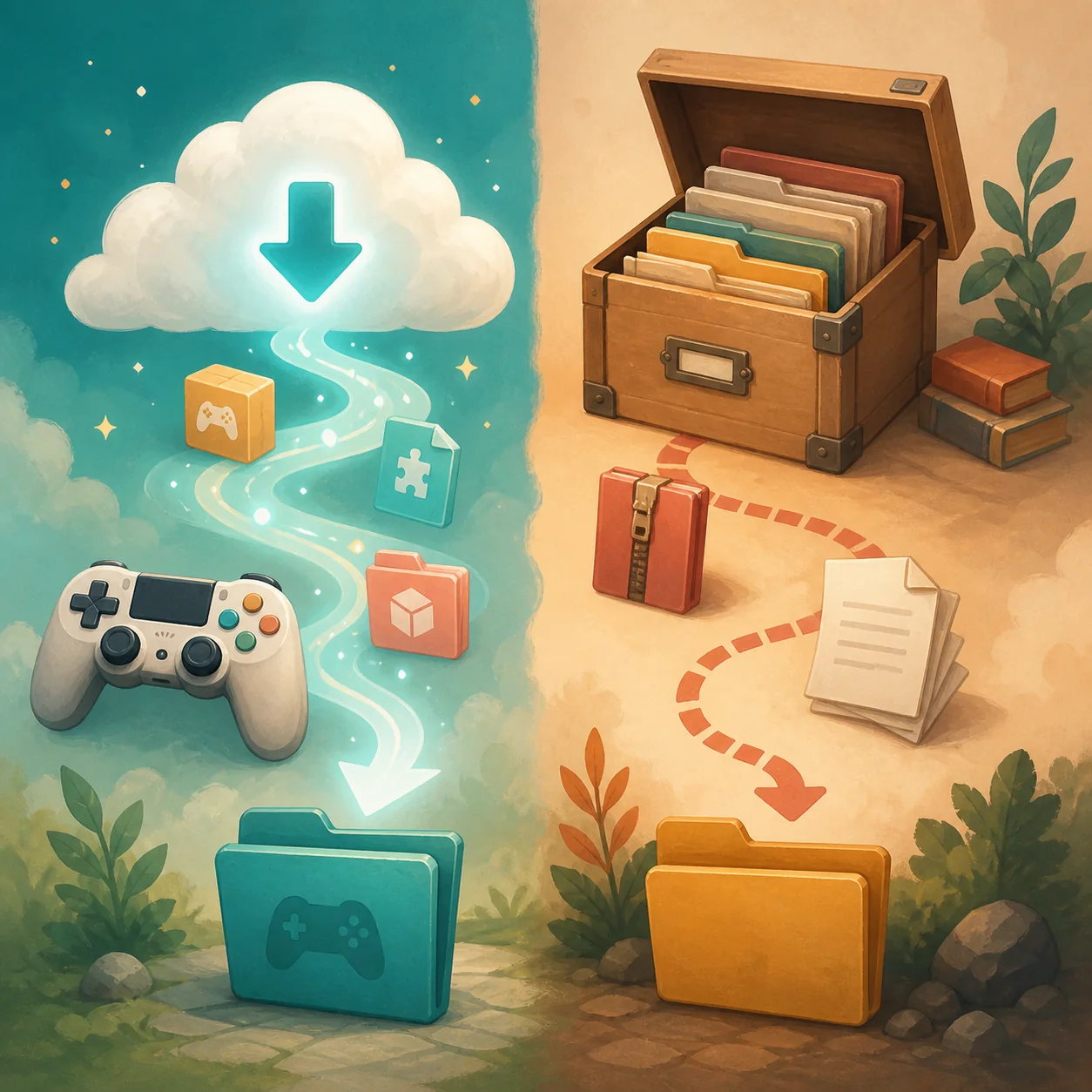
Workshop content is delivered through a Steam subscription, unlike a creator-hosted archive installed by hand. Do not copy a subscribed item into a guessed mods folder: a duplicate can be harder to identify after an update. For details, see the Workshop guide and the mods-folder guide.
- Check for a paused or incomplete Steam download before opening the game.
- If a queue is active, wait for it to finish; do not treat a partial transfer as an installed item.
- Do not manually duplicate a Workshop subscription unless the creator gives a specific, current reason to do so.
Step 3: Relaunch Paralives and test the intended place
When the Steam queue is clear, close any running Paralives session and open the game again. Relaunching gives the game a fresh start after Steam has delivered the item. It is a practical check, not proof that every Workshop item is compatible or that every kind of content appears in one shared list.
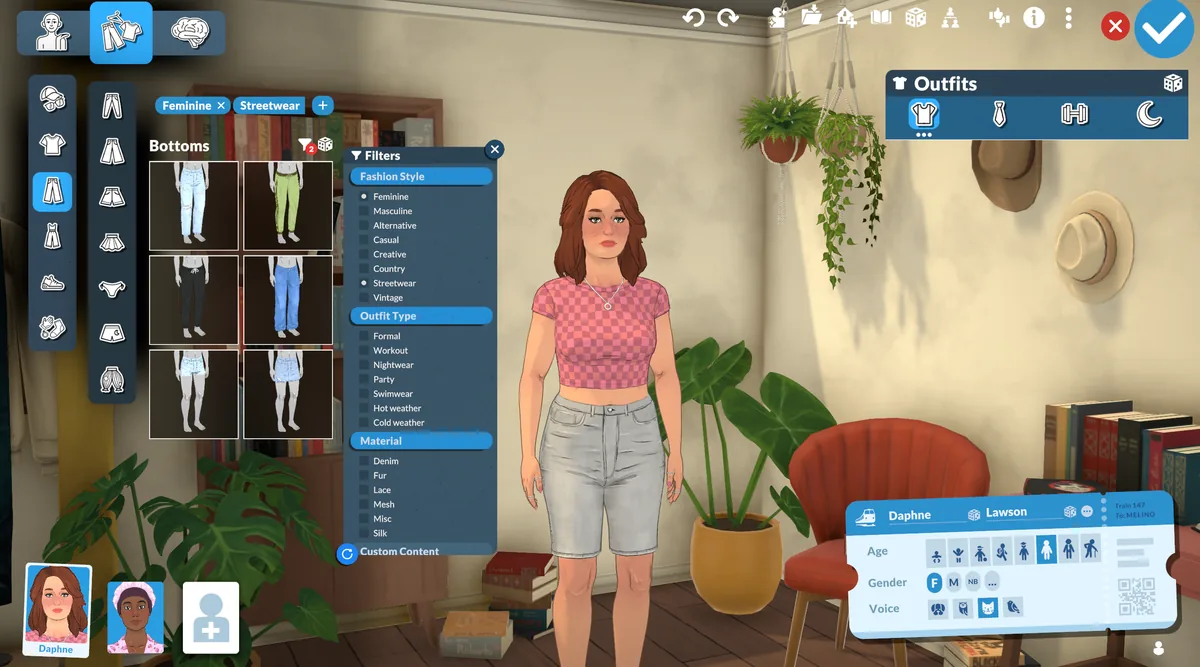
Use the item's description to choose where to look. Building objects belong in the relevant building catalog; appearance content belongs in the character or clothing context in Paralives. Behavior changes may not have a thumbnail or catalog entry. This is the practical test for how to enable Workshop mods in Paralives without relying on an unverified menu path. Open the expected category, clear filters, and compare the item name with the creator's notes before calling it disabled.
- Start with one item so the result is easy to attribute.
- Open the mode or catalog named by the creator instead of checking only a general mod list.
- Clear category and search filters, then search for the item's name or the creator's stated label.
- If a required item is missing, verify that dependency before changing unrelated subscriptions.
Use an in-game switch only when the item documents one
The official listing and material reviewed for this guide do not establish a universal switch. If an item's current creator notes name a setting, follow them and confirm that they refer to this item.
If no item-specific setting is named, do not search unrelated menus or add a loader based on copied instructions. Recheck the subscription, finished download, fresh launch, correct category, filters, and dependencies for content in Paralives. For a question about how to enable Workshop mods in Paralives, start with these observable checks. The Workshop guide explains subscriptions and removal.
- Treat an exact setting name as verified only when it appears in current creator or official game instructions.
- Do not apply instructions written for another life-simulation game to Paralives.
- Do not add a loader or change files unless the item or a trusted, current source requires it.
Diagnose the first step that did not work
Use the earliest failed check to choose the next action. If Steam does not show the item as subscribed, return to its page. If delivery is still paused, resolve the queue before testing. If delivery appears complete but nothing is visible, confirm the intended category and dependencies before changing the wider collection. If the item is visible but does not behave as described, that is a compatibility or item-specific behavior question rather than a discovery problem.
When several items are missing in Paralives, preserve the collection and inspect shared causes first: the game session, Steam delivery, filters, or a common dependency. When just one item is affected, use that item's page and requirements. If you are still unsure how to enable Workshop mods in Paralives, repeat the checks and stop at the first failed handoff. The separate mods-not-showing guide covers visibility; use mods-not-working help when an item is detected but fails.
| What you observe | Check next | What it tells you |
|---|---|---|
| The item page does not show an active subscription | Open the exact Paralives item page and confirm the account and item. | The issue is still at the subscription step. |
| Steam shows paused or active work | Resume or wait for the visible queue to finish. | The game test is premature while delivery is incomplete. |
| The game opens but the item is not visible | Relaunch, check the creator-named mode, clear filters, and verify requirements. | This is a discovery, category, or dependency check. |
| The item appears but does not behave as expected | Re-read its current instructions and compatibility notes. | Visibility succeeded; investigate behavior or compatibility. |
| Several unrelated items are missing | Check shared Steam, game-session, filter, and dependency conditions first. | A shared condition may affect more than one item. |
Keep Workshop and manual copies separate
Steam manages Workshop subscriptions, while a creator-hosted archive follows the creator's download and installation instructions. Do not install both copies of the same item while trying to make one appear. If you previously added a manual copy, record its location and follow the creator's removal guidance before testing the Workshop version. Avoid deleting a whole library to troubleshoot a single item.
If content may affect a save, test with a separate or backed-up copy when practical. Keep the original intact and compare one change at a time so you can identify whether delivery, a filter, an item requirement, or another setup change affected the result.
- Track whether each copy came from Steam or a creator archive.
- Change one item at a time and keep a note of the successful test context.
- Use creator guidance for removal; do not assume unsubscribing and deleting a manual file are interchangeable.
Workshop enablement FAQ
Do I need to turn on a universal Mods switch in Paralives?
The official sources checked for this guide do not document one universal Mods switch for every Workshop item. Do not rely on a menu path copied from another game. Check the item's current creator instructions and the official Paralives information for any named, item-specific setting.
I subscribed, but nothing changed. What should I check first?
Confirm the exact Paralives item is still subscribed, check Steam Downloads for paused or incomplete work, then relaunch the game. Look in the content type or mode named by the creator and clear filters. If it remains absent, use the mods-not-showing guide.
Should I put a Workshop item in a manual mods folder?
No, not as a general workaround. A Workshop subscription is managed by Steam. Manual archives follow their creator's own installation instructions, and duplicating the same item can make troubleshooting harder.
Should I restart Paralives after subscribing?
Close and reopen the game after any visible Steam download finishes. This gives the game a fresh session for the test, but it does not guarantee that an item is compatible or appears in every mode.
Where can I verify the official game and Workshop pages?
See the official Paralives Steam listing and the Paralives Steam Workshop. Checked October 23, 2026; no current numeric version or universal in-game toggle was verified.