The most useful Paralives gameplay mods are focused changes with a named creator, visible requirements and a source page that explains the supported release. Start with one mod and a copied save: Traits adds persistent character traits, while Direct Control changes movement and camera behavior. Do not treat a Workshop subscription, a DLL release and custom content as interchangeable installation paths.
What belongs in a gameplay mods collection
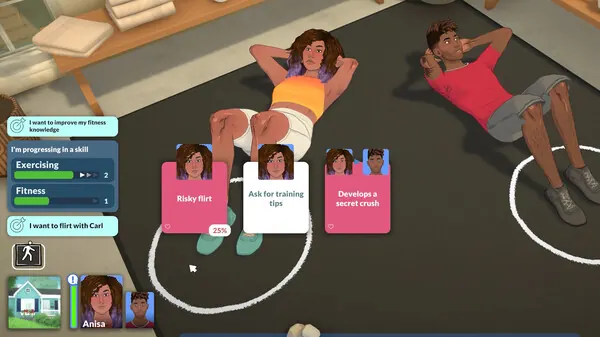
Gameplay mods change what a household, character or player can do while the game is running. That can include traits, autonomy, relationships, careers, movement, camera control, interaction menus or save-related systems. The category is different from building mods, which mainly change placement and catalog workflows, and custom content, which mainly adds appearance or decorative assets.
A clear listing should state the changed system before it asks you to download anything. It should name the creator, identify the original repository or Workshop item, explain dependencies and say whether the change can affect a save. If a page only promises a vague ‘better gameplay’ experience, treat that as an incomplete description rather than evidence of compatibility.
Paralives is still changing, so check the creator's current notes before installing after a game update.
- Traits, personalities and character-creation systems
- Movement, camera and direct-control utilities
- Relationships, careers, parties and autonomy changes
- Quality-of-life changes that alter menus or repetitive actions
- Save, loading and compatibility helpers that affect play sessions
| Type | What changes | First safety question |
|---|---|---|
| Character system | Traits, personality or creation options | Does the data persist in a save or a separate file? |
| Control utility | Movement, camera or input behavior | Which keys, framework and conflicts are documented? |
| Social or career | Relationships, jobs or interactions | Can removal leave a household or save in an unexpected state? |
| Quality of life | Menus, loading or repetitive actions | Can the feature be disabled without deleting content? |
Verified gameplay mods to compare first
The two examples below were checked against first-party GitHub release information. Both are direct-file projects rather than Steam Workshop subscriptions, and both should follow the creator's framework instructions.
Traits is a character-system mod maintained by xSauroXplayer. The checked release is V1.2.6, published September 7, 2026, with a 9,025,024-byte ParalivesTraitsProject.dll asset. Direct Control is maintained by Rockz. The checked release is 0.3.2, published June 8, 2026, with a 2,156,544-byte DirectControl.dll asset. Use the release pages to confirm requirements and any newer notes before the actual install.
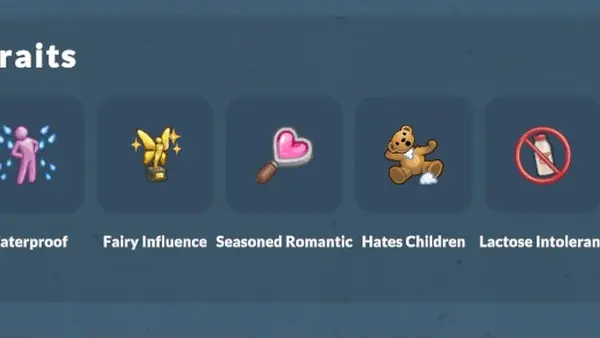
- Traits — character traits that persist with the game and use a separate trait-data workflow.
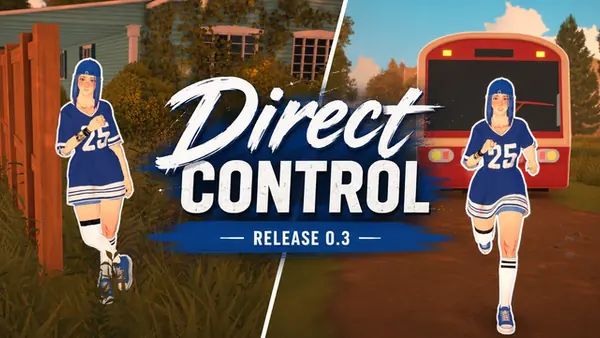
- Direct Control — WASD movement, third-person camera behavior and rebindable controls.
- Use the original release page as the source of record for requirements, changes and removal instructions.
| Project | Checked release | Best fit | Source action |
|---|---|---|---|
| Traits | V1.2.6 · Sep 7, 2026 | Players who want more character personality choices | Download DLL · Release notes |
| Direct Control | 0.3.2 · Jun 8, 2026 | Players who want direct movement and camera control | Download DLL · Release notes |
Traits: a character-focused gameplay change
Traits shows why gameplay mods need a data explanation, not only a download button. It adds a traits panel to character creation, stores traits with the game and creates an editable Resources folder on first launch. Read the creator instructions before changing or removing those files.
The V1.2.6 asset is ParalivesTraitsProject.dll. Its source record identifies BepInEx in the installation context, but the current README or release notes must define the framework version and folder placement.
Test Traits with a disposable household: create one character, assign traits, save, restart and confirm the panel and separate data file before using a long-running family.
- Read the V1.2.6 release notes and repository instructions before installation.
- Back up a known-good save before creating characters with new persistent data.
- Test one household and verify the trait panel after a clean restart.
- Keep the creator release URL with the installed DLL so updates are traceable.
Direct Control: movement and camera behavior
Direct Control changes moment-to-moment play rather than character data. It adds WASD movement, a third-person camera, sprinting, rebindable keys and smoother collision behavior. Check its toggle and settings shortcuts against the keyboard layout and other control utilities.
The 0.3.2 release is a creator-published DirectControl.dll. Do not confuse it with a Workshop subscription or copy it into a second source-managed location. If movement does not change, check the framework, key bindings and activation state before replacing files.
Use a small test lot or household: activate movement, sprint, rotate the camera, test a rebind, then disable the mod to separate an input conflict from a broken installation.
- Check the documented toggle and settings keys before assuming the mod is inactive.
- Test WASD, sprinting, camera movement and collision separately.
- Review AZERTY, QWERTZ or other layout notes when rebinding controls.
- Remove duplicate copies before testing a new release.
How to install gameplay mods without risking a main save
Gameplay mods are easiest to troubleshoot when the source path and test state are known. Start with the Paralives mod installation guide, then follow the creator README. A generic ‘put the DLL in the mods folder’ instruction can be wrong when a framework or release package defines another location.
Do not extract a release into the game's core installation files unless the author explicitly instructs you to do so. Keep the original archive or release filename, record the version and make a backup before the first launch. If Steam is involved, finish the subscription download before testing; do not manually copy a second version of the same Workshop item.
Launch with the smallest test setup, confirm the behavior, then reload the same state.
- 1. Read the source instructionsConfirm the framework, supported release, file location, activation key and removal process from the creator page.
- 2. Copy a save firstUse a disposable household or copied save for any mod that changes characters, relationships, careers or persistent data.
- 3. Install one projectDo not add a second gameplay change until the first one has launched and passed a simple feature test.
- 4. Record what workedKeep the release tag, source URL, installed filename and test result in a small note.
- 5. Keep a rollback pathClose the game, restore the backup when needed and remove only the files identified by the creator instructions.
A compatibility and save-testing checklist
A gameplay mod can appear to work while still producing a problem later. Persistent character data, relationships and careers may not be as reversible as a camera toggle. That is why the right test is a sequence rather than a single launch: activate the feature, perform the promised action, save, restart, reload and then remove or disable the mod only on a copy.
When a new Paralives update arrives, do not assume every older plugin is broken or every plugin is safe. Check the creator release page, compare the stated version with your game build and test the feature again. If no current compatibility statement exists, mark the project as unverified in your own notes instead of describing it as updated.
Apply the same sequence to relationship, career and autonomy mods before long-term play.
- Before: back up the save and note the unmodded behavior.
- During: test the smallest feature that proves the mod is active.
- After: save, restart and reload before adding another gameplay change.
- If broken: remove the newest change first and use the mods-not-working checklist.
- If missing: use the mods-not-showing checklist to separate visibility from compatibility.
| Test stage | Evidence to keep | Why it matters |
|---|---|---|
| Before install | Copied save and default behavior | Provides a safe comparison point |
| First launch | Loader message, menu or control response | Shows whether the file is discovered |
| After save | Reloaded household or character result | Catches persistence problems |
| After update | Creator note and repeated feature test | Separates game changes from file mistakes |
Choose gameplay, building or custom content
The category boundary is practical. Choose gameplay mods when you want a new rule, interaction, trait, movement option or player control. Choose building mods when the goal is placement, floors, furniture, alignment or construction selection. Choose custom content when you want hair, clothes, accessories, body options or decor without changing the underlying rules of a household.
Install advice should follow the file's behavior: a gameplay DLL may need a loader and restart, a decorative asset may appear only in a catalog filter, and a Workshop item may be managed by Steam. For more choices, visit Best Paralives Mods or the Steam Workshop guide.
Gameplay mods FAQ
What are Paralives gameplay mods?
They are mods that change how characters, households or players interact with the game, including traits, movement, camera, relationships, careers or other play systems. They are different from building assets and appearance custom content.
Are these gameplay mods official Paralives features?
No. Traits and Direct Control are creator-published community projects. This page links to their recorded GitHub sources and does not present them as Paralives Studio features.
Which gameplay mod should I install first?
Choose one that matches your goal. Traits is for character personality options; Direct Control is for movement and camera behavior. Test either one with a copied save and read the current creator instructions first.
Can gameplay mods break a Paralives save?
They can introduce more save risk when they add persistent traits, relationships, careers or other stored data. Back up a known-good save, test on a copy and read removal notes before using a mod in a long-running household.
Why is my gameplay mod not working after an update?
The framework, game hooks, key bindings or source package may no longer match. Check the creator release page, remove duplicate copies, test one mod at a time and use the mods-not-working troubleshooting guide.